Movibop

Halloween AI Video Effects from Your Photos

Turn a selfie into a spooky phone-call scene, or bring a friend for a pumpkin-patch video. Pick a Halloween AI video effect, upload your photos and download the finished clip.

Choose your effect

See What You Can Create

Play the examples before choosing. Each effect has its own photo requirements and credit cost.

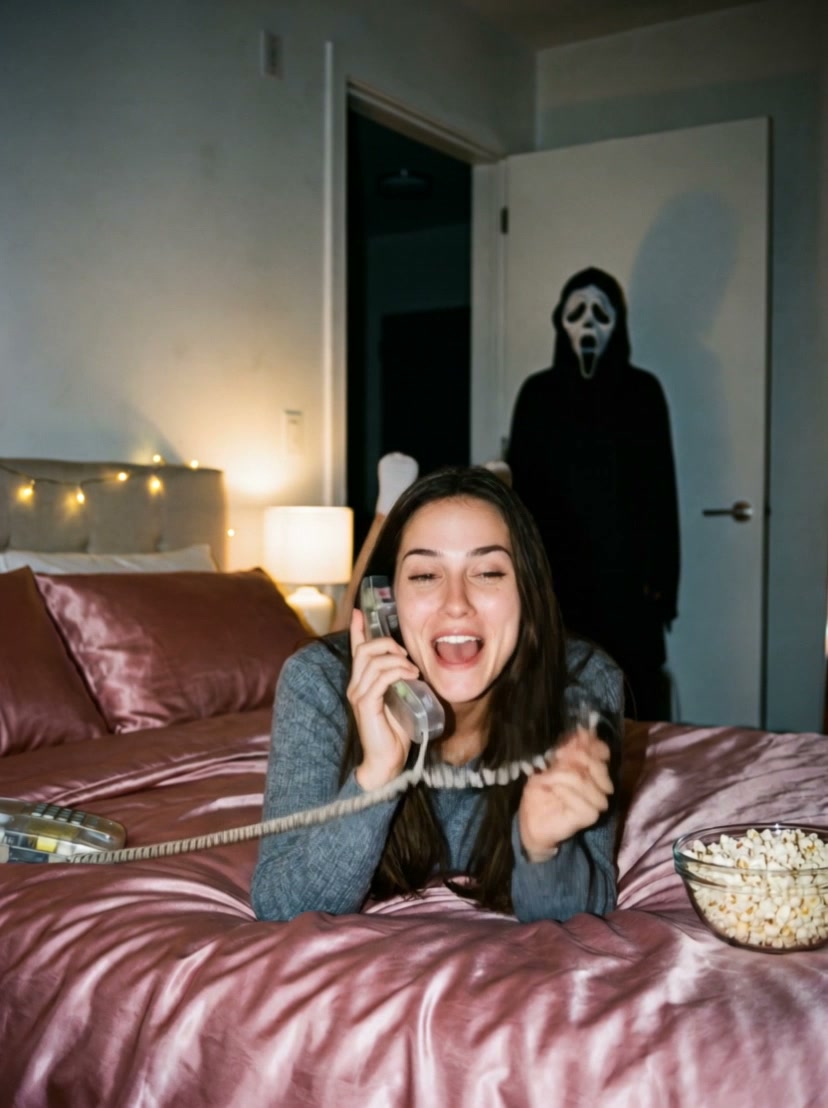
Ghost Call: the solo scare

A corded phone, pink satin bedding and a masked Halloween guest in the doorway. Your selfie sets the lead character in this nostalgic bedroom scene.

1 photo(s) · 10 seconds · 450 credits per video

Use one clear, front-facing selfie with one visible face.

Create My Halloween Video

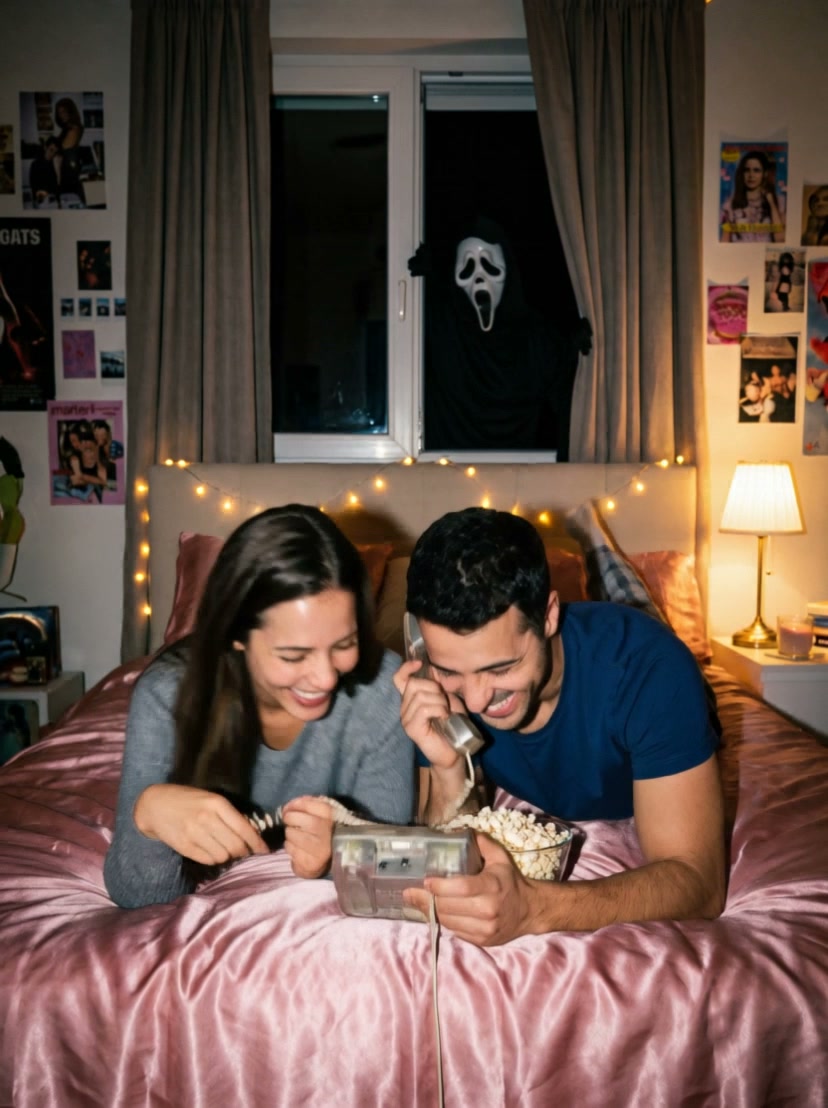
Ghost Call Couple: share the scare

Two people share a phone while a masked guest appears at the window. Make a Halloween clip with a partner, sibling or best friend.

2 photo(s) · 10 seconds · 550 credits per video

Upload two separate selfies, one person per photo. Match the lighting where possible.

Create My Halloween Video

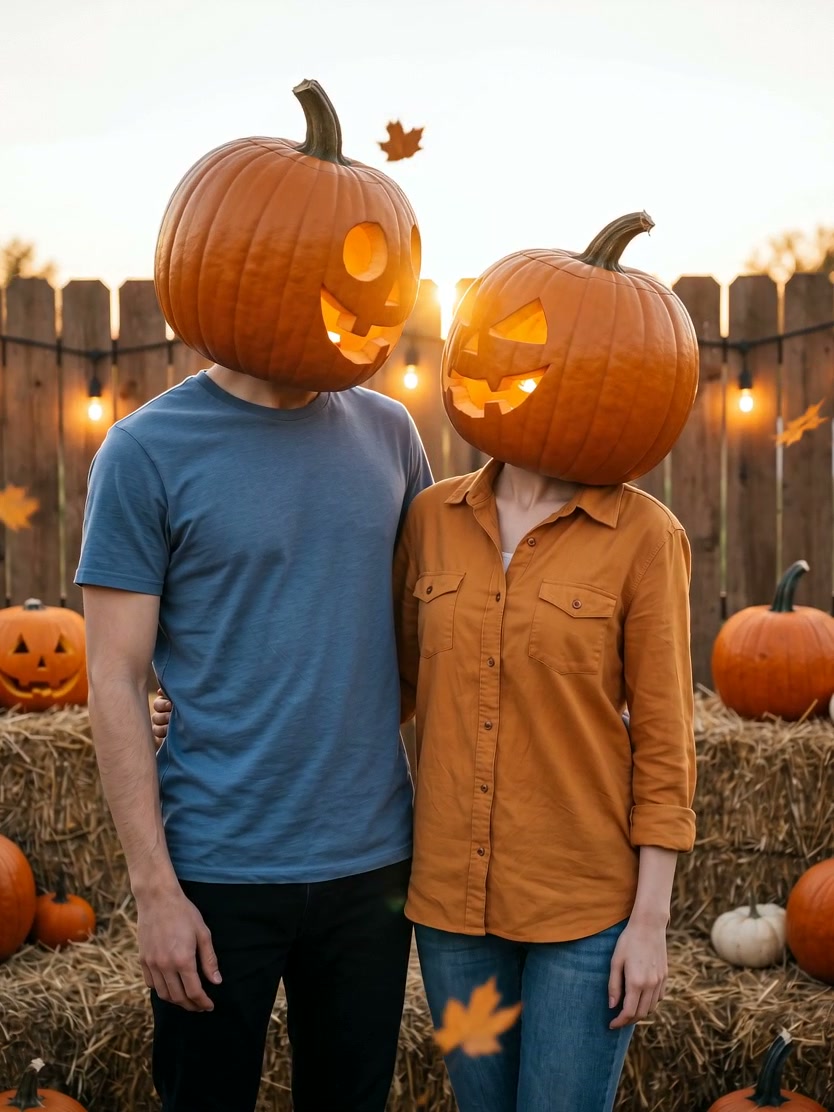
Pumpkin Head: a cozy autumn duo

Glowing jack-o’-lantern heads, falling leaves and a golden-hour pumpkin patch. A playful autumn video that replaces human faces with carved pumpkins.

2 photo(s) · 10 seconds · 550 credits per video

Upload two upper-body photos, one per person. Faces are replaced, and clothing details may change.

Create My Halloween Video

Halloween AI Video Challenge

One entry per person. Create with Ghost Call, Ghost Call Couple, Pumpkin Head or Werewolf. No follower minimum.

Read the rules

The 2026 challenge is over. New entries, social submissions and votes are closed. You can still create Halloween videos; no new campaign rewards are available. Submitted entries remain subject to review and final settlement.

The Community leaderboard

Voting is closed. Final rankings and rewards are confirmed after review.

1 registered participants

No public entries to display.

2026 challenge rules (closed)

The 2026 challenge is over. New entries, social submissions and votes are closed. You can still create Halloween videos; no new campaign rewards are available. Submitted entries remain subject to review and final settlement.

  1. Open October 28 through November 1, 2026, 23:59 UTC (November 2, 07:59 Beijing time). Registration, entries, social submissions and voting close together.
  2. Register first. Submit one video you generated yourself with an eligible Halloween template. Choose carefully: your selected entry cannot be replaced. It must be completed and publicly available in Community to qualify.
  3. Community publication follows the existing reward rules: up to 200 credits per first publication, no repeat reward for the same video, at most three rewarded videos per UTC day. Withdrawing a rewarded video follows the existing credit-return rules and removes it from this leaderboard.
  4. Social bonus: 600 extra credits for each of the first 50 approved accounts. Submit the matching public post URL with the required hashtag, brand name and entry code. Staff verify ownership and content before awarding. Bonus credits expire 60 days after issuance.
  5. Each signed-in account may like each entry once and may undo that like before the deadline. No self-voting. Only likes recorded during the campaign count. Votes freeze at the deadline. Bots, purchased likes and coordinated fake-account activity are ineligible and may lead to disqualification.
  6. The top three eligible entries receive 5,000 / 3,000 / 2,000 bonus credits after staff review. Equal likes are ordered by earlier entry time, then entry ID. Each participant can win one ranking prize. At least one valid like is required. With fewer eligible entries, remaining prizes are not awarded. Results are announced within seven days after closing; ranking bonuses are issued when results are finalized and expire after 60 days.
  7. Use photos you have permission to upload. Your selected video and display name are public in Community and the campaign. Your entry code is shown to you and reviewers here, and you include it in your public social post. We will request separate permission for off-site promotional reuse.
  8. Generation uses the credit cost displayed on each template. Entry is optional and does not require a subscription. This is a credit-reward activity, not a free-generation offer or a cash prize.

From your camera roll to a Halloween clip

  1. Pick a scene

    Watch the video, then open the effect. The original template page handles your upload and generation.

  2. Add the right photos

    Use JPG, PNG or WebP files up to 20 MB each. Use photos you have permission to upload; add two separate portraits for duo effects.

  3. Check credits, generate, download

    Sign in and check the current cost. If you need credits, choose a sufficient pack and return to the same effect. Follow progress in Creations and review the result before sharing.

Buy enough credits for your chosen effect

One-time packs are available alongside subscriptions. The suggestions below cover at least one video at the displayed cost; a signed-in balance is included once it loads. You can generate directly when your balance is enough.

View all credit packs and subscriptions

Halloween video questions

Do I get a video or a Halloween photo?

These effects deliver a generated video. The still image is part of the generation process; a separate photo-editor download is not included. Watch each preview for the intended scene.

Can I use one group photo for a couple effect?

Ghost Call takes one selfie. Ghost Call Couple and Pumpkin Head require two separate photos, one per person. Use clear, well-lit images; AI may change facial, body or clothing details.

Is the smallest credit pack enough?

Not always. Compare your balance plus the pack credits with the current cost of your effect. The template-aware pricing page recommends an existing pack that covers the difference, and shows estimates for that effect.

What if generation fails?

A task marked failed returns its deducted generation credits automatically. A task still processing is not yet a failure. Check Creations for the final status and contact support if the result or balance needs review.

Where do I download the Halloween video?

Open the completed video in Creations, review playback and use Download. Generate with enough time to check the result before posting; the preview is an example rather than a guarantee of an identical result.

See the input photos and try the prompts

Our guide shows the public demonstration inputs, the existing video examples and reference prompts for all three scenes.

Photos, prompts & how-to guide