AI example
Baby Dance
Baby Night 🍼🕺
1 photo·Video·200 creditsSubject photo
A playful child dance on a lawn in daylight. Check the example and use a photo you have permission to upload.
Choose an effect, add your photos, and make a short video.
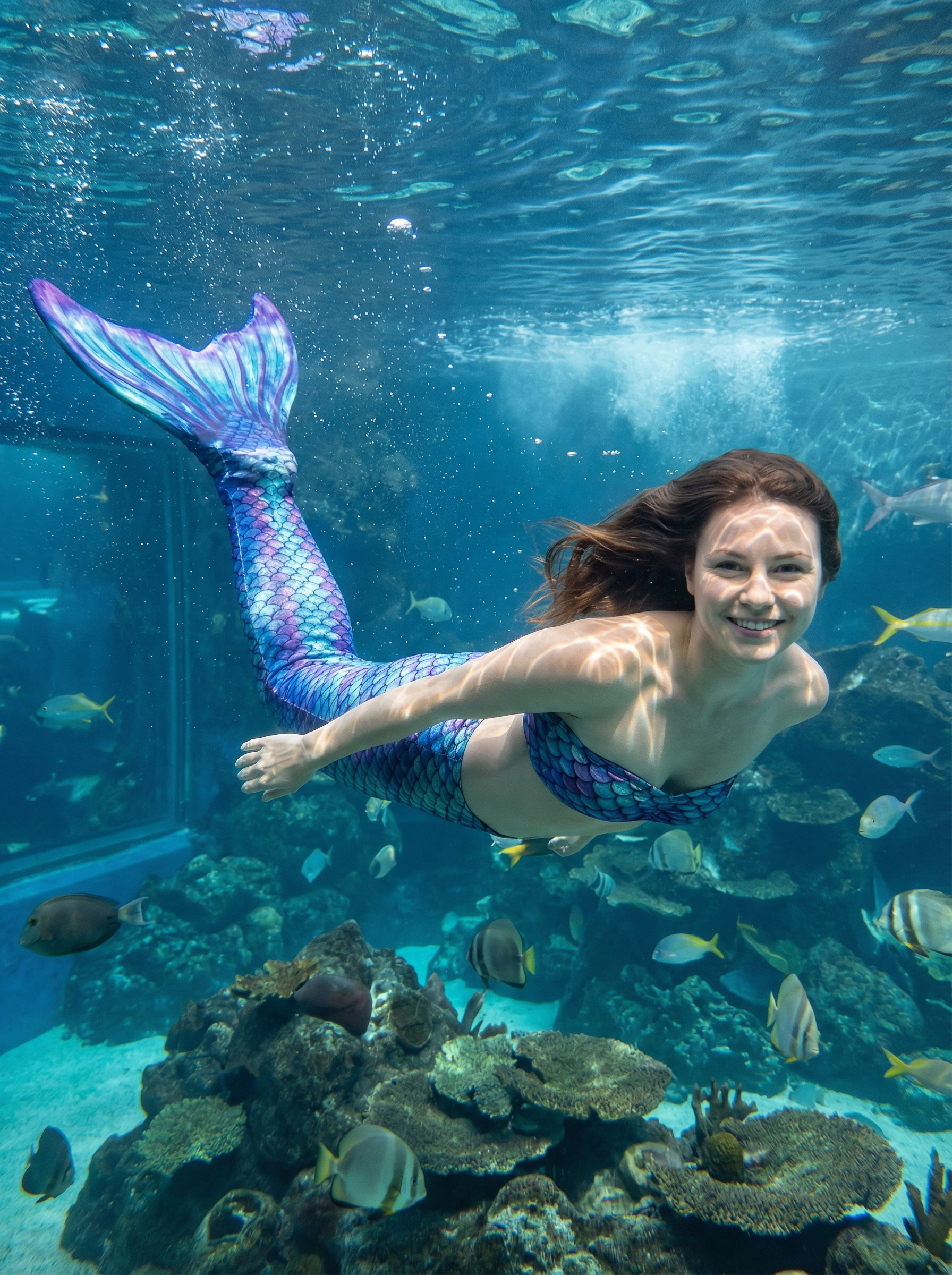
Explore preset fantasy scenes and transformation effects.
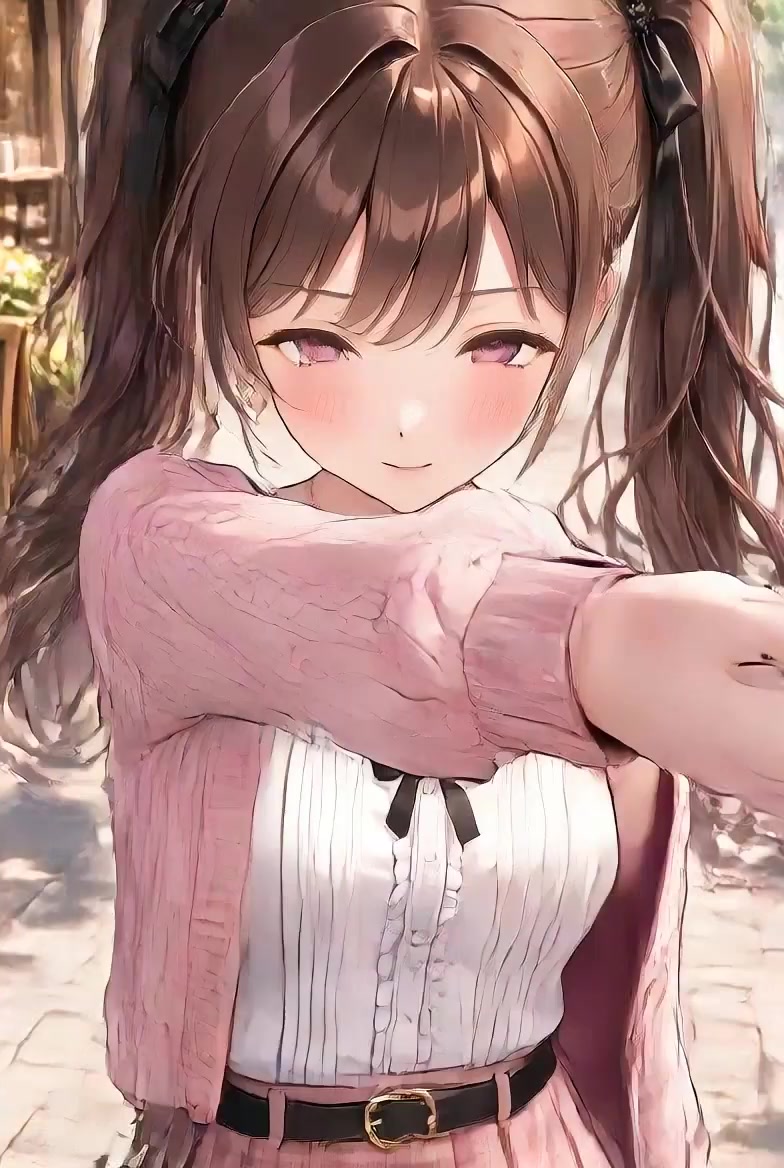
Stage routines, lawn dances and more. Compare the movement before choosing a template.
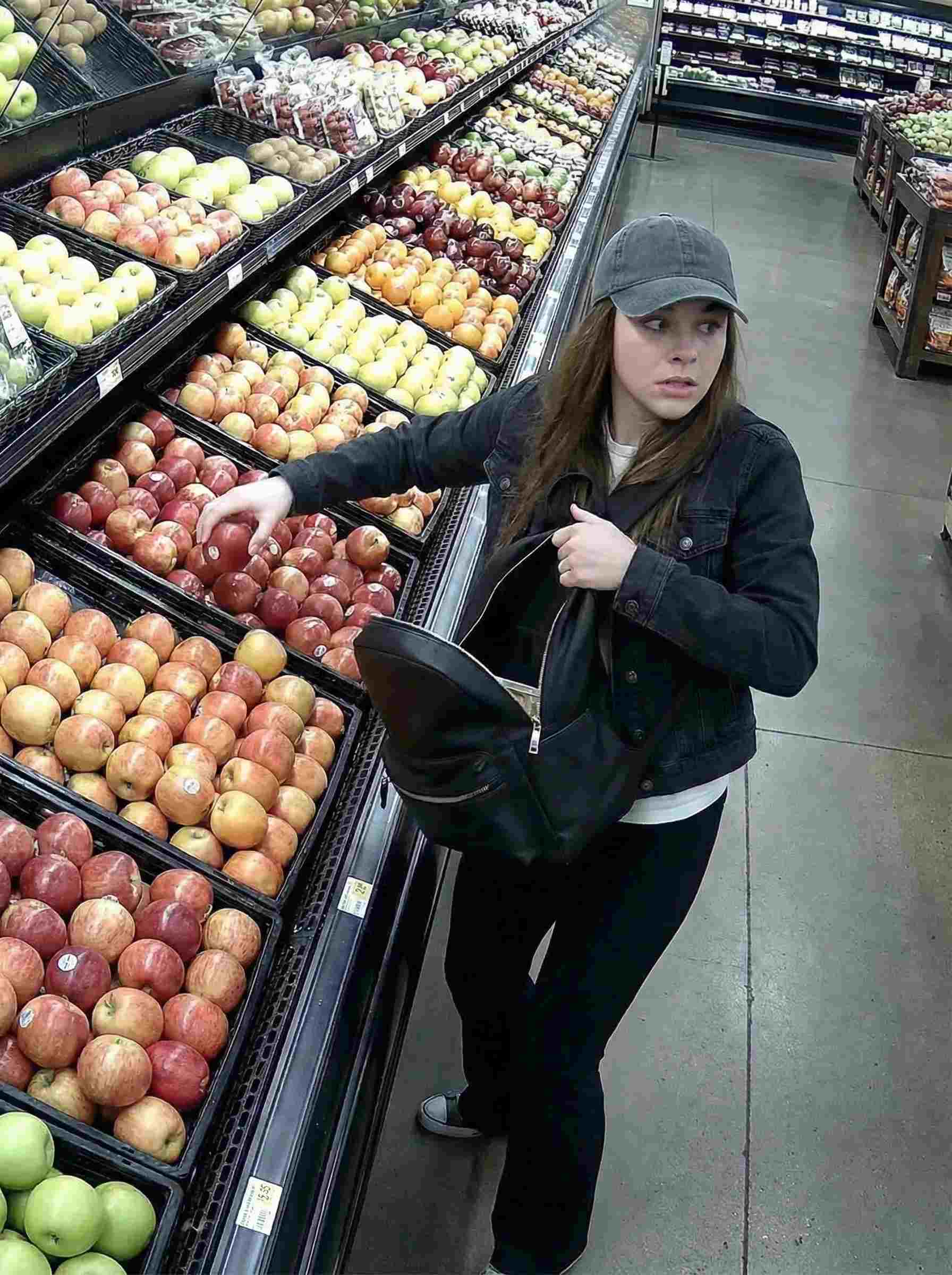
Staged phone calls and fictional grocery scenes. Choose the gag, then bring your own photo.
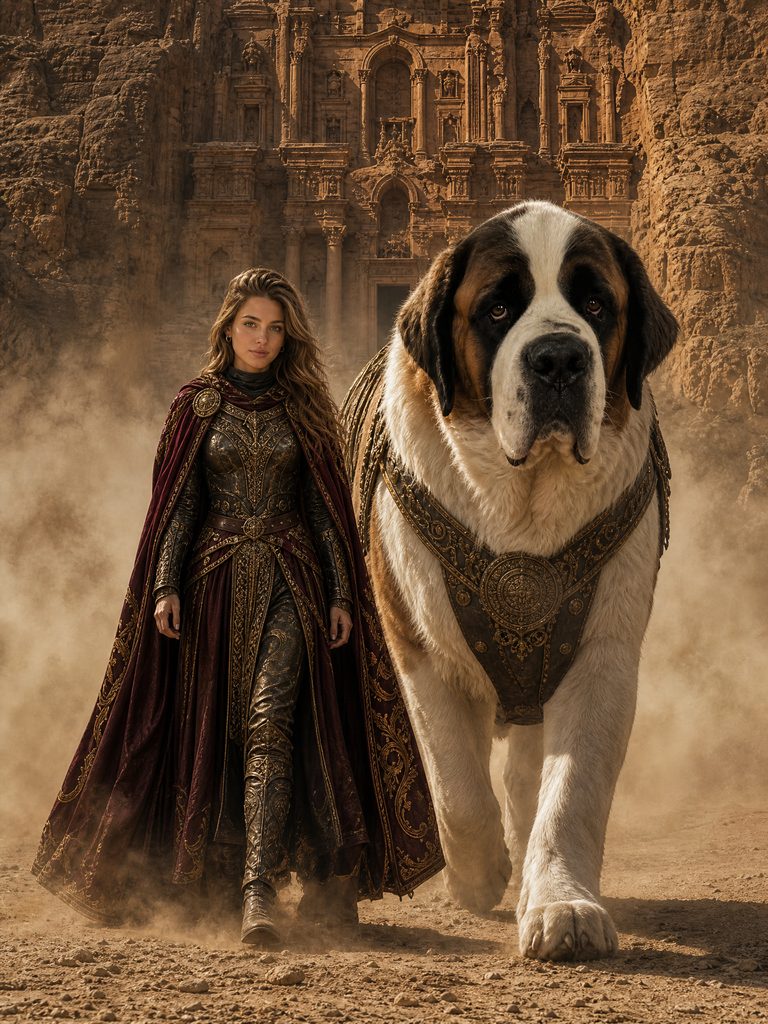
Walk beside a giant dog in a fantasy world. Compare the setting and check the two photo roles.
Choose a scene, add the photos shown on its template page, and check the credit cost before generating. A ready-made photo to video AI effect supplies the movement and setting. Your photos guide who appears in the clip.
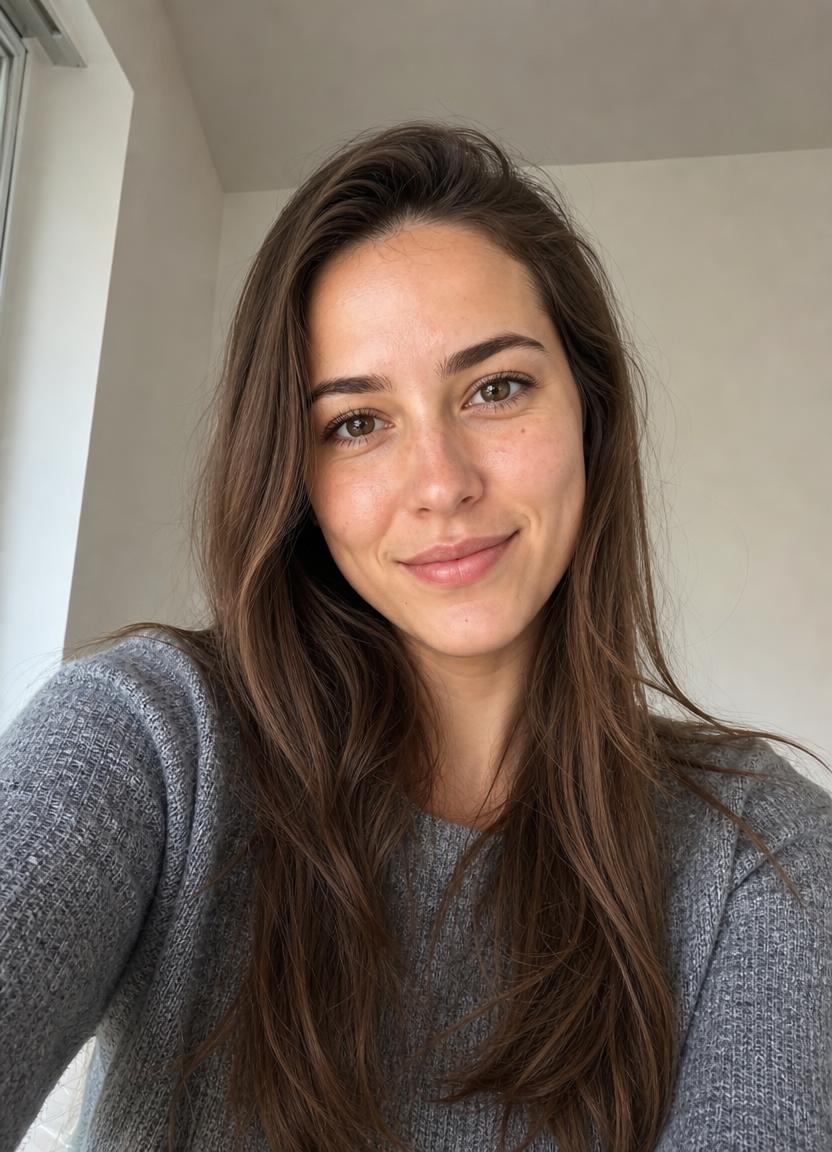
AI examples selected for their distinct scenes and photo requirements. Your result will vary with your photos.
Baby Night 🍼🕺
1 photo·Video·200 creditsSubject photo
A playful child dance on a lawn in daylight. Check the example and use a photo you have permission to upload.
Clear front-facing selfie
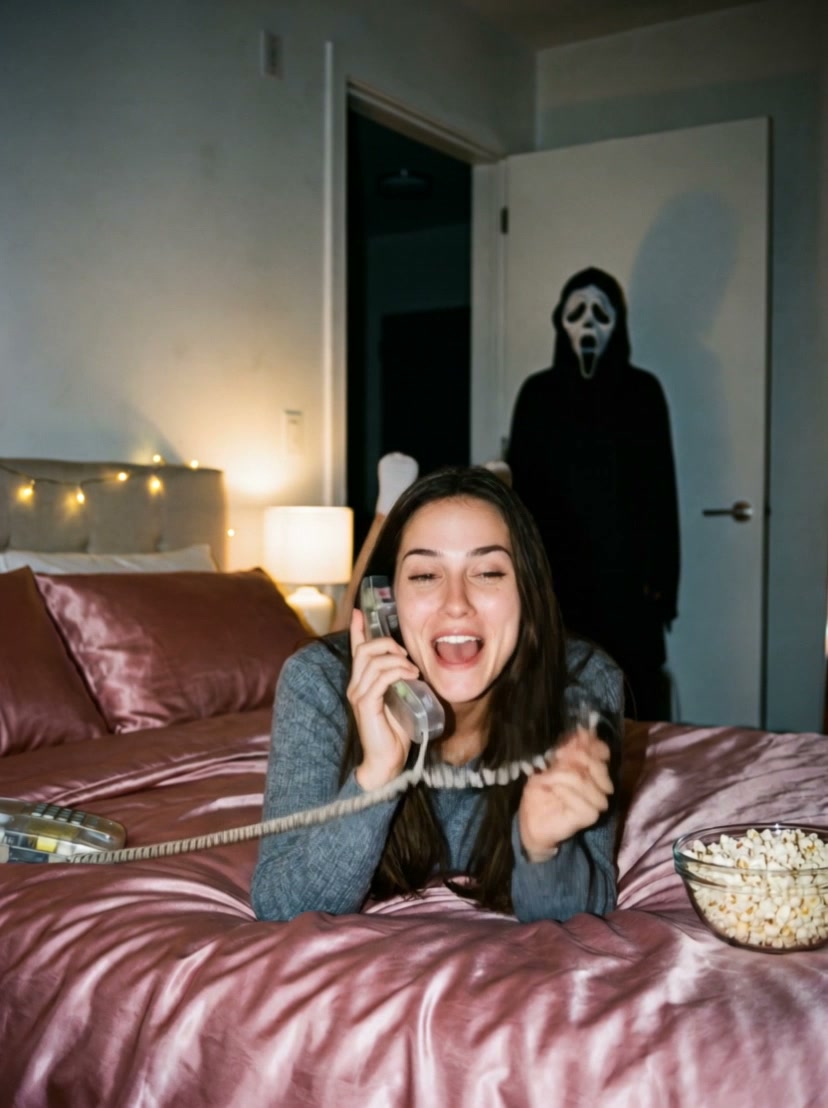
A staged Halloween phone call with a masked guest in the doorway. The output is a video.
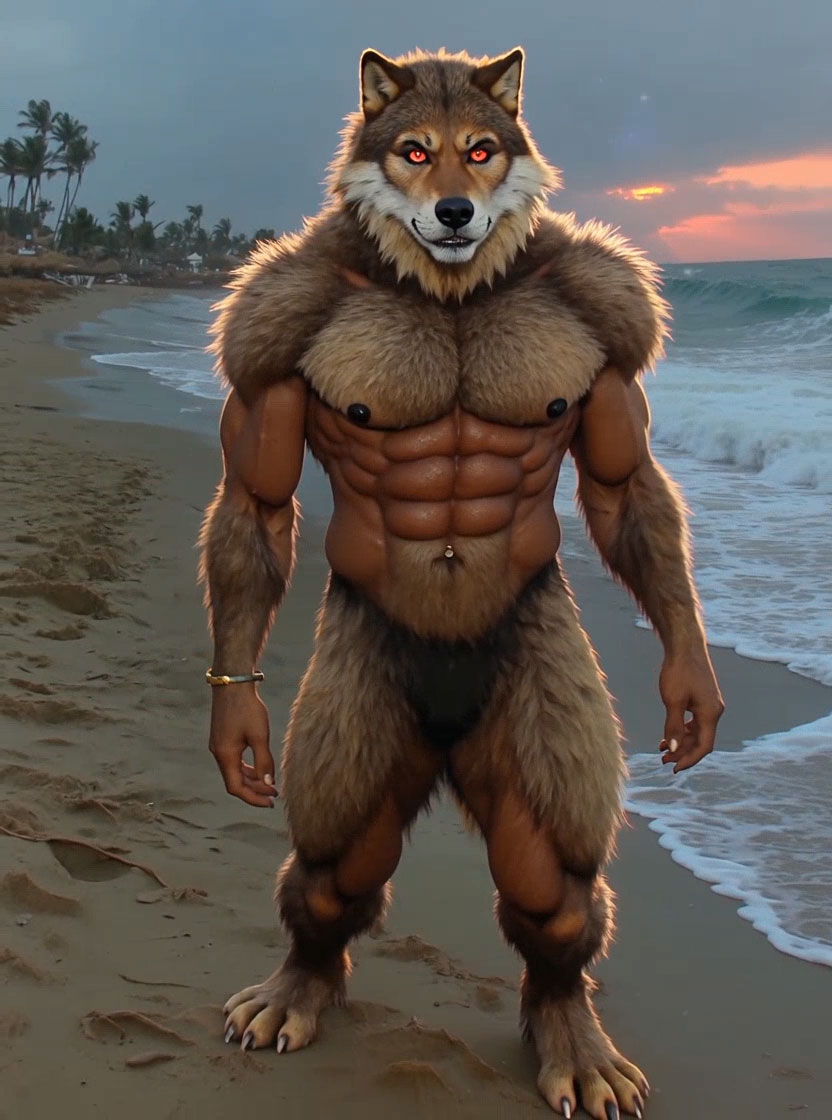
Werewolf
1 photo·Video·200 creditsSubject photo
A purple-glow transformation from person to a wolf-like character on a beach.
Photo 1
A fictional grocery-store scene with a character handling fruit in the produce aisle.
Browse real examples in the video feed. When an effect catches your eye, open its preset to check the photos and credits.
Watch examplesRead the meaning and sources behind each format. A making link appears only when an existing workflow is available. These are editorial selections, not a live popularity ranking.
Recognize the scene, watch the reference and explore who you could put in it.
Third-party AI reference
How the two-person zombie-hug AI format works, the CapCut template that spread it, and what to check before casting your couple.
Explore this memeThird-party AI reference
The scripted Jamel Debbouze sketch behind the Stromae meme, why people call it the 'making of', and how the two-photo AI recast works.
Explore this memeThird-party AI reference
The Drake "Burning Bridges" chandelier scene behind the AI trend, the moves people copy, and what to verify before making one.
Explore this memeUse clear photos you own or have permission to use. Follow the input roles on each template; AI can change faces, backgrounds and movement.
Prepare photos for AI videoCheck the order in two-photo templatesBrowsing and previews are free. Generating uses the credits shown on each effect. If a task fails, check its status and credit record before retrying.
View pricing and credit packsIt is a tool that uses an uploaded image as the starting point for an AI-generated video. Movibop uses ready-made templates to define the effect, so you begin by choosing a scene rather than building a video from scratch. Your photo and the selected template shape the generated result.
A clear phone photo is enough for single-photo effects such as KDA Firestarter Dance or Ghost Call. Check the template for framing advice. Two-person effects such as Ghost Call Couple require two separate uploads.
Generation time varies with the effect and current demand. Follow your task in Creations to see its status instead of relying on a fixed completion time. When the clip is ready, open the result and review it before saving or sharing.
You can browse templates and watch examples without paying or creating an account. Video generation uses credits. Check the cost on the template you choose and visit Pricing for the available purchase options. Free browsing does not mean that every generated video is free.
The preview demonstrates the template's style and intended effect. Your uploaded photos influence the result, and AI-generated details can vary. Do not expect an identical face, background, or movement in every attempt. Choose a suitable photo and assess the completed video on its own.
Open the result page to review the task status and related credit record. Check those details before trying again, since another attempt may create a separate task. If you still need help, use the support link and include the task information relevant to your question.
Upload only photos you own or have permission to use. Movibop is for creative entertainment; sexual or explicit content, including non-consensual intimate imagery, is prohibited. Check the Terms of Service and Privacy Policy before uploading photos if you need details about permitted use and how your information is handled.
Find an effect you like. Check the photos and credits, then create your version.
Browse Effects